DIGITAL DECLUTTERING
How to Organize Apps on iPhone for a Clutter-Free Home Screen
Keep everyday apps close, use clear folders and give your Home Screen room to breathe.
An iPhone can become cluttered in much the same way as a drawer. You download something useful, leave it where it lands and gradually forget what is there.
Before you know it, everyday apps sit beside old games, shopping apps and tools you installed for a single task. Finding something means swiping through several pages or opening folders with names that no longer make sense.
A practical way to organize apps on iPhone is to keep everyday apps on your first Home Screen, group related apps into a few clearly named folders and leave occasional apps in the App Library. Review what you actually need before rearranging everything.
You do not need a perfectly styled screen or another organizing app. Start with a layout that makes your phone easier to use.
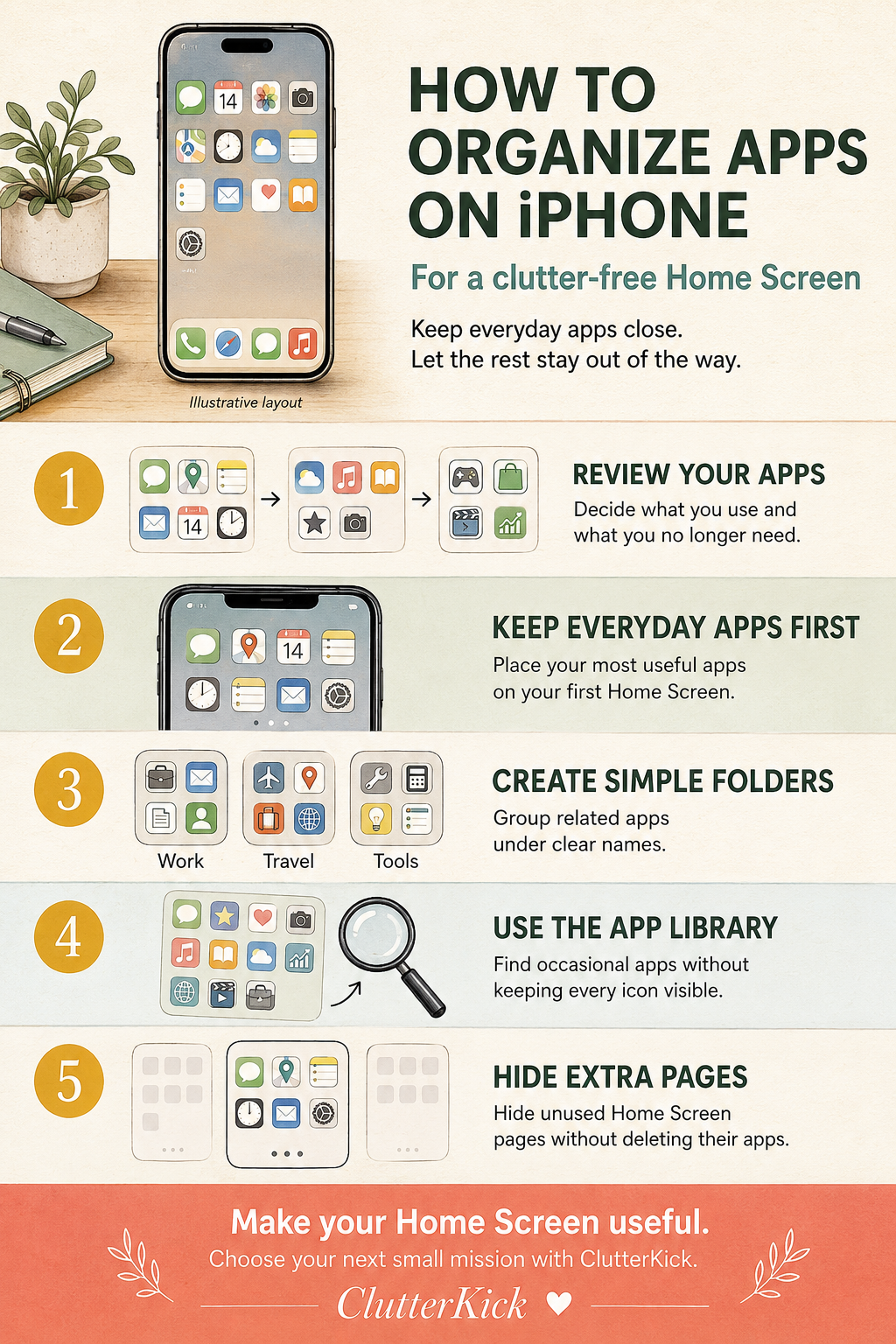
1. Review your apps before moving them
Before creating folders, look through your existing Home Screen pages.
For each app, ask:
- Do I still use this?
- Do I need to see it every day?
- Does another app already do the same job?
- Was it downloaded for a trip, event or task that has finished?
- Am I keeping it because I need it or because I forgot about it?
Think in three groups: everyday apps, occasional apps and apps you no longer need.
Everyday apps deserve convenient positions. Occasional apps can remain available without taking up prominent space. Apps you no longer need can be reviewed for deletion.
Do not delete something simply because you rarely open it. An authenticator, travel app or account-management tool may still be important. Check what it contains and how you would regain access before removing it.
This follows the same principle as decluttering your closet before organizing it: decide what belongs before spending time arranging it.
2. Keep everyday apps on your first Home Screen
Your first Home Screen should reflect your routine, not the order in which you downloaded apps.
Choose the apps you regularly open for useful tasks. These might include:
- Messages
- Maps
- Calendar
- Notes
- Your preferred browser
- A transport app
- A work communication app
There is no ideal number that suits everyone. The aim is to make your most useful apps easy to spot without filling every available position.
Keep apps in consistent locations. If you move everything repeatedly, you may spend more time searching than you did before.
4. Use the App Library for occasional apps
The App Library gives you another way to find installed apps without keeping every icon on a Home Screen page.
Swipe left past your last Home Screen page to reach it. Use its search field to find an app by name or browse the alphabetical list.
Apple automatically groups apps into categories. You cannot manually move an app into a different App Library category. Custom folders belong on the Home Screen instead. Consult Apple’s App Library guide for the full process.
This is useful for apps you need only occasionally, such as a parking service used in another city or an airline app between trips. Think of the Home Screen as your everyday workspace and the App Library as a place to find the rest.
5. Reduce unnecessary Home Screen pages
Once your everyday apps are together, you may find that some pages no longer need to remain visible.
To hide a Home Screen page:
- Press and hold an empty area until the icons jiggle.
- Tap the page dots near the bottom.
- Deselect the page you want to hide.
- Finish editing.
Hiding a page does not uninstall its apps. They remain accessible through the App Library.
You can also prevent future downloads from automatically filling the Home Screen. Open Settings → Home Screen & App Library, then select App Library Only under the new-app download options. Consult Apple’s Home Screen instructions for the full process.
The exact appearance of controls can vary with your iOS version.
Keep a second page if it serves a clear purpose. The goal is not to force everything onto one screen. It is to remove pages you constantly swipe past without using.
Use a 10-minute app-organizing reset
You do not need to reorganize your entire phone in one session.
Set a timer for 10 minutes and:
- Review one Home Screen page.
- Identify apps you no longer need.
- Remove occasional apps from the Home Screen.
- Move everyday apps into convenient positions.
- Rename confusing folders.
- Stop when the timer ends.
Repeat with another page later if necessary.
Avoid combining app organization with a full photo, email and file cleanout. These are separate jobs. Keeping the task small makes it easier to finish.
Frequently asked questions about organizing iPhone apps
Can iPhone organize apps automatically?
The App Library automatically categorizes apps, but it does not design your preferred Home Screen layout. You choose which apps and folders remain visible there. Apple’s App Library guide
Does removing an app from the Home Screen delete it?
No. Remove from Home Screen removes the visible shortcut while keeping the app installed. Delete App is a separate option. Consult Apple’s app-removal guidance for the full process.
Should I organize apps by color or category?
Choose the method that helps you find things. Categories are a practical starting point because they describe what apps do. Color-based arrangements may look attractive, but they are less useful if you cannot remember an app’s icon color.
Make your Home Screen useful, not perfect
A well-organized iPhone does not need matching icons or an elaborate theme.
Start by reviewing your apps. Keep everyday tools visible, give related apps clear folder names and let occasional apps stay out of the way.
The best arrangement is one you understand and can maintain without constantly rebuilding it.
Ready to tackle another small area? Visit ClutterKick and choose your next decluttering mission.